


*Note that as stated by Google, "existing ad customizers for expanded text ads will continue to serve until May 31, 2024".
With regards to Responsive Search Ads the setup for ad customizers is different from text ads. Instead of using one customizer feed with multiple pieces of ad content and targeting settings, now you can create attributes and set the pieces of ad content directly in your campaign, ad groups, and keywords. These customizers will use the targeting settings of the ad groups, campaigns, and keywords where they show.
To implement Ad Customizers for Responsive Search Ads follow these easy steps:
1. Open Business Data
2. Create your ad customizer (define the ad attributes). This is how you’d categorize the dynamic text.
3. Enter attribute details (assign values at the appropriate levels). This is the actual text that will appear.
4. Customize your ad text (insert the ad customizer in your responsive search ad).
1. In your Google Ads account, click the Tools icon
2. Click Business Data
3. Click Ad customizer attributes
4. Click the Plus button
Now what you have to do is to add some individual details about your ad that you’d like to customize. These are known as "attributes" and can be used accross your account.
You can add attributes individually or upload multiple attributes from a spreadsheet once they've been created individually in Google Ads.
2. Click the Bulk actions drop down in the section menu.
3. Click Uploads.
4. Click the plus button
5. Click Download the example template to see which data to include. Leave rows 8 through 12 under columns A through C in the template blank.
6. Select the source of your file from a spreadsheet or Google Sheets.
7. Add your attributes. Note that there's a limit of 40 ad customizer attributes that can be created:
- Enter the name of your attribute in the "Attribute" column
- Enter the characters format that your attribute uses in the "Data type" column
- Enter the value that appears for your attribute in the "Account value” column
8. Create values (this is just an example of some of the values you can add):
- Enter the name of the campaign in the "Campaign" column
- Enter the ad group in the "Ad group" column
- Enter the keyword in the "Keyword" column
- Enter the customizer name in the "Customizer:Name" column
- Enter the customizer count in the "Customizer:Count" column
- Enter the customizer percent in the "Customizer:Percent" column
- Enter the customizer price in the “Customizer:Price” column
9. If you would like to remove existing values to assign default values, you should add “remove_value” to the “Account value” or appropriate customizer column. This will result in the customizer showing the default value.
After you have created your attribute, you can add the content for your customizer (text, price or number that will appear in your ad).
Note that responsive search ads that don’t have a customizer value available can't be reviewed.
This content can be customized for different campaigns, ad groups and keywords.
For responsive search ads, customizers will use the targeting settings in this order of priority: keyword, ad group, campaign, account, and default value. Default value will be used in the event your ad customizer doesn’t show or the text exceeds the character limit.
Your customizers are now created so you can use them to customize your ads:
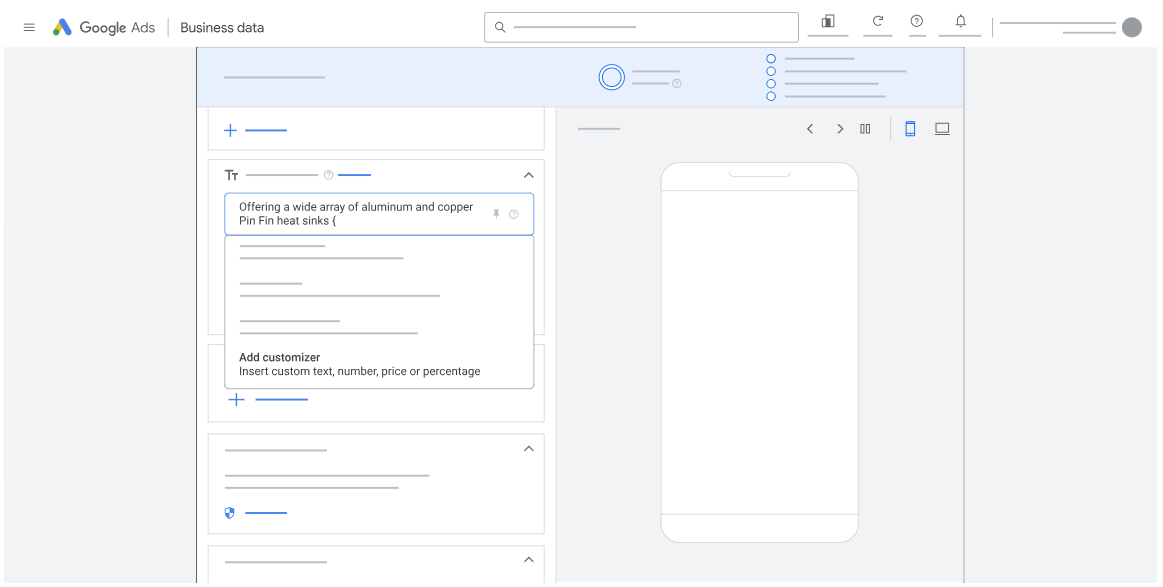
6. Select Ad customizer from the dropdown menu
7. Select the attribute you’d like to show on this part of your ad text
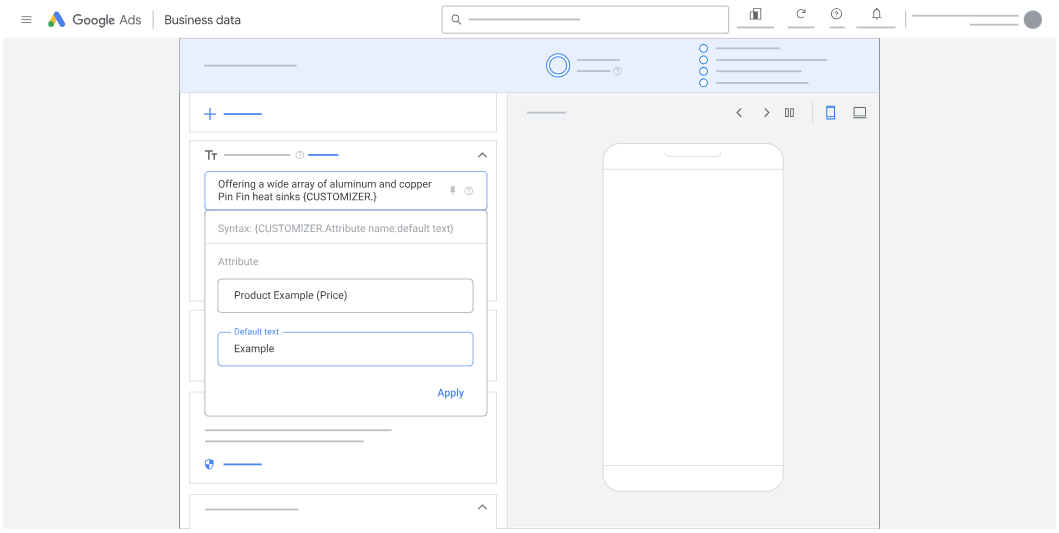
8. Enter a default value for the customizer, if you’d like to specify what text will show when nothing triggers your customizer.
9. Click Apply

.svg)