The steps to add labels from the Performance Max report in Dolnai to Merchant Center are very simple:
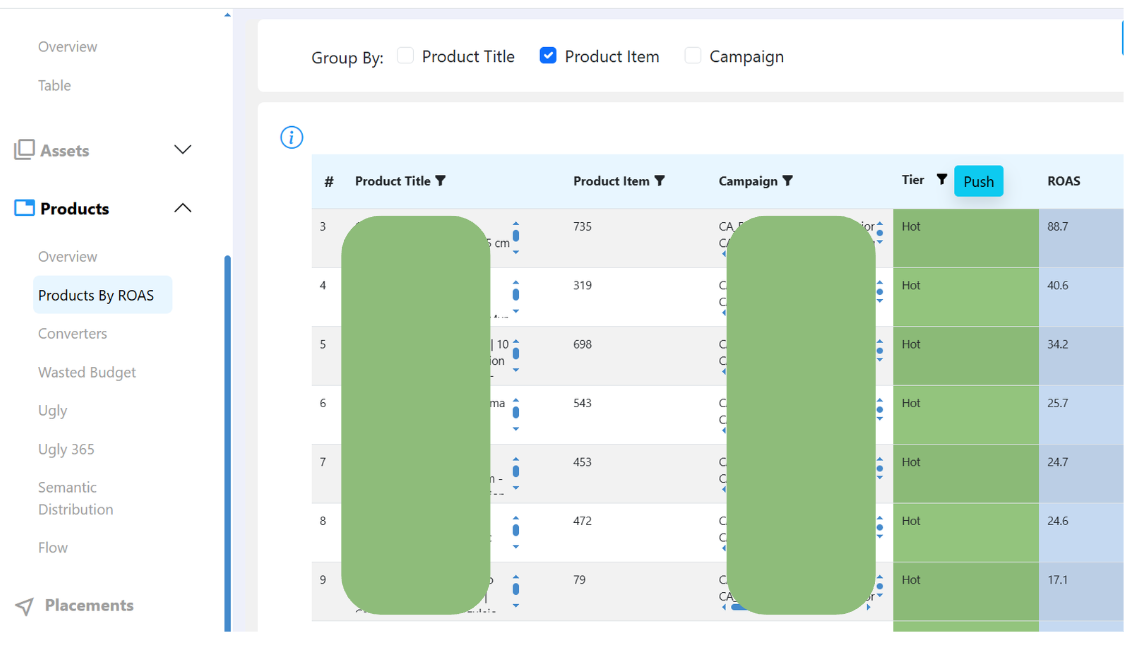
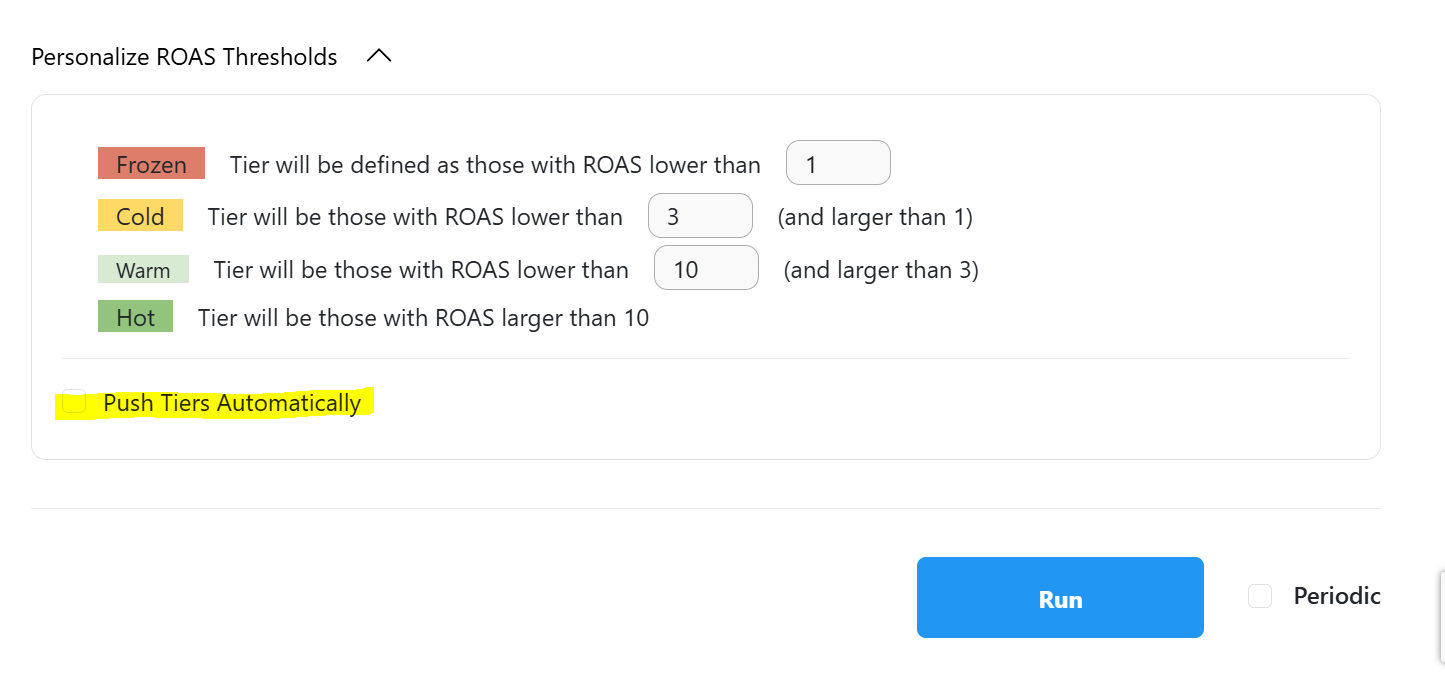
Click “Push” from the Product by ROAS section or when launching the report, check the option Publish Tiers Automatically.
Add the labels from the report
Add the labels while running the report
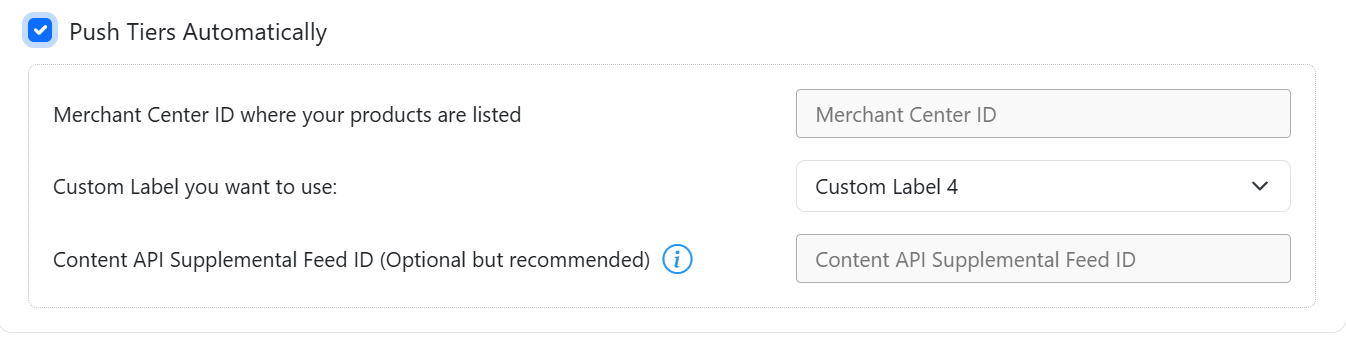
Merchant Center ID: enter the digits found in the top-right corner of Merchant Center. It contains only numbers.
Custom label: you must choose a label that is empty in the account. This is important to avoid overwriting existing data.
Supplemental source ID:
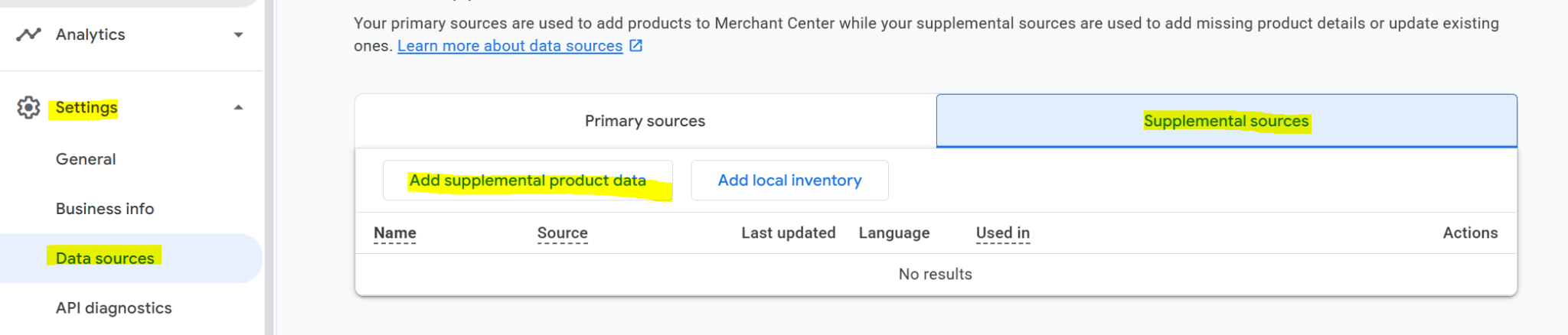
In Merchant Center go to Data Sources > Supplemental Sources. Copy the number from any of them. If there is none, you must create one. To do so, choose the option on the right “Add product data via API” and give it a name (any name is fine, but we recommend something like Supplemental Fee Pmax/Shopping depending on the campaign type). This option is not mandatory for it to work, but it is important to include it so that the labels are not deleted due to Merchant Center overwrite rules.
**If you create a Supplemental Fee, we recommend indicating which label you selected and whether it is Pmax or Shopping, so it is easier to remember when you Push again. If you have both Pmax and Shopping campaigns sharing products, it is important that both the label and the supplemental fee ID are different, so they are not overwritten.
After saving, a number will appear. Copy it into the third field before clicking Push.
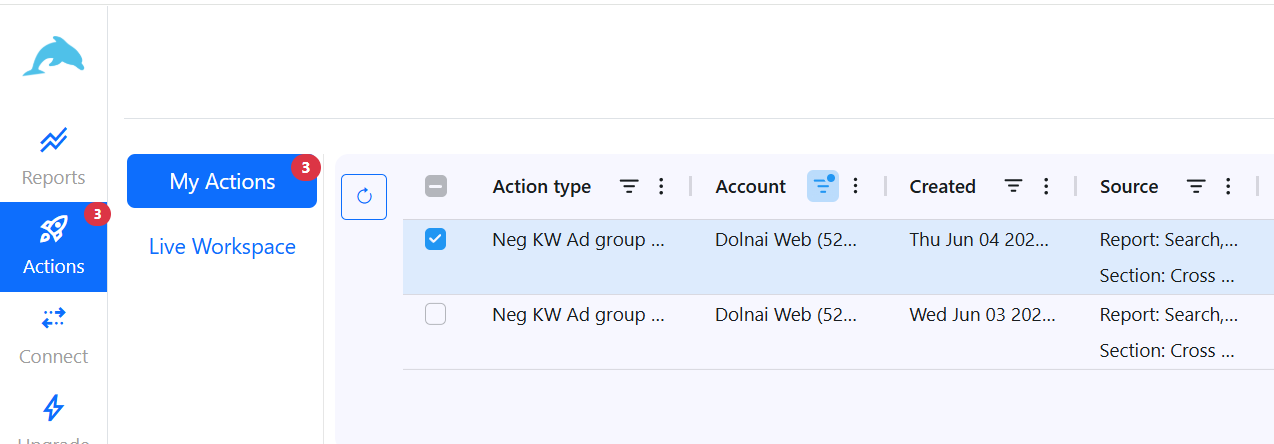
Remember to Confirm the labels in the Sections Actions.
Confirm any change from Dolnai to Google Ads in actions




.svg)